
Popis
SeeOnWall adds a „See on your wall“ button to your poster/art product pages. Shoppers take (or
upload) a photo of their own wall, or pick a stock room scene, and instantly see the poster
placed at true physical scale — reducing purchase hesitation and returns.
Requires WooCommerce (8.0+) to be installed and active — SeeOnWall is a WooCommerce
extension, not a standalone plugin.
How it works
- Install and activate SeeOnWall.
- Go to WooCommerce SeeOnWall and click Connect to SeeOnWall. No account signup, no API
key to copy — the plugin proves it controls your store’s domain and a free account is
provisioned automatically. - A „See on your wall“ button appears on your product pages automatically, sized from your
product’s Dimensions (WooCommerce Product data Shipping). - Upgrade to a paid plan any time from the SeeOnWall settings page: higher usage limits on
every paid plan, the seeonwall.com attribution removed from Basic up, shopper session
sharing from Premium up, and no monthly view ceiling on Ultra. Every paid plan starts with
a 14-day free trial, billed by SeeOnWall directly (Polar.sh), not through WooCommerce.
External service: SeeOnWall
This plugin is the client for SeeOnWall, a hosted software-as-a-service that renders the
wall previews. The plugin does not do the visualization itself — it connects your store to the
SeeOnWall service at https://seeonwall.com and loads the service’s viewer on your product pages.
It is not usable without this service, which is operated by the plugin author.
What is sent, and when:
- On connect / reconnect (one-time, triggered by you clicking Connect): your store’s URL
and the connecting WordPress admin’s email address. In return the plugin receives a store token
used to authenticate later requests. The admin email is used only for account notifications
(e.g. usage-limit alerts) and billing — it is never shown to shoppers or used for marketing. - On product pages (for connected stores): a small JavaScript viewer is loaded from
https://seeonwall.com/seeonwall.js, and the product’s image URL and physical dimensions are
passed to it so the shopper can preview the poster. This is loaded from SeeOnWall (not bundled)
because the preview is a live hosted service, kept current server-side. - The plugin itself sends no shopper data. It only injects the button and passes the product
image URL and dimensions. Shoppers, however, interact directly with the SeeOnWall service once
they open the preview — see below.
What SeeOnWall does with shopper data (not the plugin, but the service it loads):
- A shopper who picks a room-scene template uploads nothing at all. No photo is created.
- A shopper who uploads or takes a photo of their own wall has that photo stored in an EU
Cloudflare R2 bucket and analysed by Google Vertex AI (via Google’s EU Data Boundary endpoint,
pinned to europe-west1) to detect the wall corners. The photo stays inside the EU for its whole
lifetime, is never used to train models, and is deleted automatically when the session expires
after 7 days. - Shoppers never create an account. Cloudflare Turnstile is used for bot protection on upload.
- A notice stating the above is shown to the shopper inside the viewer, before they upload.
Service terms, privacy policy and sub-processors:
- Terms of Use: https://seeonwall.com/terms
- Privacy Policy: https://seeonwall.com/privacy
- Sub-processor list: https://seeonwall.com/subprocessors
Reporting illegal content
If content hosted by SeeOnWall is unlawful — for example a poster image used without the rights
holder’s permission — you can report it to abuse@seeonwall.com. The notice-and-action procedure
under Article 16 of the EU Digital Services Act, including what a notice must contain and how it
is handled, is described at https://seeonwall.com/report
Source Code
The admin settings page is a small React + TypeScript app. The plugin ships only its compiled,
minified output (assets/js/settings.js, assets/css/settings.css). The complete, human-readable
source those files are built from is included in this plugin under the src/ directory, together
with build instructions (src/README.md). Build tooling: Node.js + Vite (npm install && npm run). React and ReactDOM are not bundled — they resolve at runtime to the copies WordPress
build
ships (the react / react-dom script handles).
Translations
The plugin ships translations for German, Polish, Spanish, French and Italian, covering both the
PHP strings and the React settings screen. It follows your WordPress admin language (Users
Profile Language), including regional variants such as de_AT, es_MX and fr_CA. Translations
delivered through translate.wordpress.org take precedence over the bundled ones, so community
translations are picked up automatically.
Snímky obrazovky


Instalace
- Upload the plugin files to
/wp-content/plugins/seeonwall-for-woocommerce, or install directly through the WordPress plugins screen. - Activate the plugin through the „Plugins“ screen in WordPress.
- Go to WooCommerce SeeOnWall and click Connect to SeeOnWall.
Nejčastější dotazy
-
Does this cost anything?
-
The plugin is free, and so is the plan it connects you to: a free account is provisioned
automatically on connect, with no card and no expiry. Paid plans buy higher limits (below),
the seeonwall.com attribution removed from Basic up, shopper session sharing from Premium up,
and no monthly view ceiling on Ultra. Every paid plan starts with a 14-day free trial and is
billed by SeeOnWall directly, not through WooCommerce. The analytics dashboard — sessions,
poster views, shares, downloads and the per-poster breakdown — is on every plan, Free
included. -
What are the usage limits, and where do I see them?
-
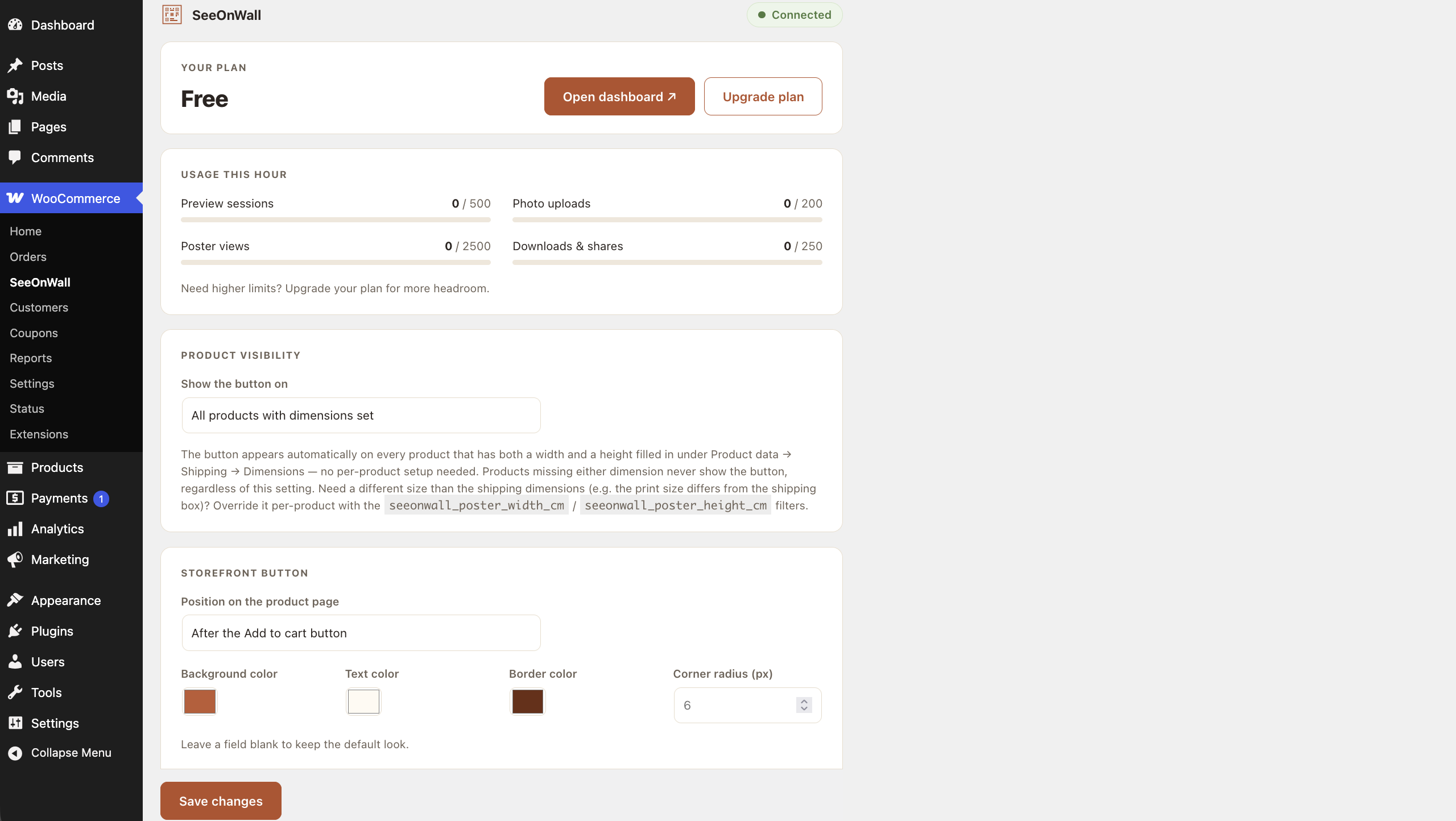
WooCommerce SeeOnWall shows a live meter for each one under Current usage.
Per hour, resetting at the top of every hour, as Free / Basic / Premium / Ultra:
- Preview sessions — 50 / 500 / 2,500 / 10,000
- Photo uploads — 20 / 200 / 1,000 / 2,000
- Downloads and shares — 25 / 250 / 1,000 / 2,000
- Poster views — 100 / 2,500 / 10,000 / 50,000
Poster views have a second, monthly budget on top of the hourly one: 500 a month on Free, 5,000
on Basic, 25,000 on Premium. Ultra has no monthly ceiling — it is bounded by its hourly rate
alone. The month resets at the start of each calendar month (UTC).A poster view is one preview shown on a calibrated wall, counted once per shopper session per
day however many devices it appears on. It counts against the hourly and the monthly budget at
the same time, and whichever runs out first stops further views from being counted.Reaching a view limit does not break your store — the button still appears and still opens — but
shoppers who get all the way to the preview are asked to try again later instead of seeing it,
until the window resets or you upgrade. You can opt in to an email alert when a limit is reached
from your SeeOnWall account settings. -
Which product field sets the poster’s physical size?
-
By default, WooCommerce’s own product Dimensions (Product data Shipping Width/Height),
converted using your store’s configured dimension unit. On a variable product, each variation’s
own Dimensions are used. This can be overridden per-product via theseeonwall_poster_width_cm
/seeonwall_poster_height_cmfilters. -
I sell one poster in several sizes as variations. Does that work?
-
Yes, from version 1.4.0. Fill in the Dimensions of each variation (Product data Variations
expand a variation Dimensions) and the preview picks them up automatically. Shoppers get a
size selector inside the preview listing every size you sell, and when they change the size on
your product page the preview follows. There is nothing extra to configure and no size to type
twice — it reads the dimensions you already entered.Variations that share a size are listed once, so a Size × Frame colour product still shows one
pill per size. If you left the Dimensions blank on the variations and filled them on the parent
product instead, every variation measures the same and the preview behaves as it always has. -
Configurable from WooCommerce SeeOnWall Product visibility. By default, every product with
both a width and a height set shows the button — on a variable product, that means at least one
variation with dimensions. Switch to „Only products with the preview enabled“ to opt in
per-product instead, via aseeonwall_preview_enabledcustom field/meta set to a truthy value —
dimensions are still required either way. -
Configurable from WooCommerce SeeOnWall Poster image. By default, the product’s first
gallery image is used, unless aseeonwall_image_urlcustom field/meta is set on that product,
which overrides it — useful when the first image isn’t a clean flat shot of the poster (e.g. a
framed mockup or room scene). Switch to „Use image from custom field“ to require the custom
field on every product instead; the button won’t show on products missing it. -
My product photos are mockups. Can the preview still show the right size?
-
Yes, from version 1.2.0. If your photo shows the print on a coloured background or inside a
frame, the preview would otherwise treat that whole photo as the poster and the print would look
smaller than it will on the wall.Set the
seeonwall_image_urlcustom field on the product, then fill in SeeOnWall artwork
inset on the product’s Shipping tab with the rectangle the print itself occupies, as
left,top,width,height percentages of the image — for example14.07,23.6,70.07,50.2. Both are
needed: the rectangle is measured against one specific image, so it only applies to the image
you pointed the plugin at.Because mockups are normally generated from a template, the same value usually works for every
product that shares that template. Leave the field empty to use the whole image. -
Do previews show the poster in a frame?
-
Only if you say so. By default the preview shows the bare print, and the shopper can add,
widen, recolour or remove a frame themselves.There are two ways to set what it opens with. WooCommerce SeeOnWall Framing takes one
default frame width in centimetres (and optionally a colour) for the whole shop; leave the width
empty for unframed. From version 1.8.0 you can instead list the frames you sell in the SeeOnWall
dashboard — a name, a colour and a width each — and shoppers pick from those inside the preview
rather than from six generic colours. Name them as your variations name them and the preview
opens on the frame the shopper selected, following the variation dropdown.Before version 1.1.0 every preview was drawn with a 2 cm black frame whether or not you sold
frames; if you do sell framed prints, set a default width or list your frames to restore that
appearance. -
What happens if I move my store to a new domain?
-
Open WooCommerce SeeOnWall — a „Reconnect“ prompt appears automatically when the plugin
detects the site URL no longer matches the domain it was connected under.
Recenze
Pro tento plugin nejsou žádné recenze.
Autoři
SeeOnWall – Wall Art Preview for WooCommerce je otevřený software. Následující lidé přispěli k vývoji tohoto pluginu.
Spolupracovníci
Přeložte “SeeOnWall – Wall Art Preview for WooCommerce” do svého jazyka.
Zajímá vás vývoj?
Prohledejte kód, podívejte se do SVN repozitáře, nebo se přihlaste k odběru protokolu vývoje pomocí RSS.
Přehled změn
1.8.2
- Fixed: Open dashboard, Upgrade plan and Manage subscription no longer get blocked. These
buttons opened their tab only after the request behind them came back, which browsers treat as
a pop-up rather than as something you clicked. The tab now opens the moment you click and fills
in when the address is ready. If your browser blocks it anyway, the screen says so instead of
appearing to do nothing. - Your plan and your button settings now say when they are loading, and when they failed.
The plan used to read „Free“ while it was still being fetched, so a paid store looked free for
a moment; the button settings simply stayed absent if the request failed. Both now show their
state, and the button settings offer Retry. - Settings you cannot save are caught before saving. Corner radius below zero, a frame width
outside 0-10 cm and button text over 120 characters now show a clear client-side message (with
the affected label field identified) before the request is sent. - The Corner radius field no longer stops at 50. It was the only field with a ceiling the plugin
does not enforce. - Buttons and fields now show a visible outline when reached by keyboard, and every action button
is at least 44 pixels tall for touch. - New screenshots on this listing: a preview on a real wall with the bookmarks and recently
viewed panels, the room-scene picker beside the QR code, the analytics dashboard, and the
preview as a shopper sees it on a phone.
1.8.1
- Listing only, no code changes. The plan limits on this page were out of date. The Free plan’s
promotional capacity has ended, so Free now runs on its own figures: 500 poster views a month
and 100 an hour, 50 preview sessions and 20 photo uploads an hour. Every plan’s hourly limits
are now listed rather than described, and the answers about what a paid plan adds — branding
from Basic up, session sharing from Premium up, the 14-day trial, analytics on every plan
including Free — say which plan each one belongs to. The answer about frames now covers the
frame catalogue that 1.8.0 added.
1.8.0
- New: the preview can show the frames you sell instead of six generic colours. List your
frames in the SeeOnWall dashboard — the name you use for each one, its colour and its width in
centimetres — and shoppers choose from that list inside the preview, at the width you entered. - The preview opens on the frame the shopper has selected. If you sell a poster framed in
several ways as variations, the preview follows the variation dropdown: pick Oak and it opens
in your oak frame, at your width. No setup and no new field — name a frame in the dashboard
the way it is named in your variations, and the two find each other. Any attribute works,
whatever you call it, in any of the six languages the plugin speaks. - WooCommerce SeeOnWall Storefront button now links to the frame list. The plugin signs you
in to the dashboard with one click, the same way it already does for your plan and analytics;
there is no second frame editor here to keep in step with that one. - Frame names show exactly as you type them, to shoppers in every storefront language, because
they name your products rather than translate a word. - Nothing changes until you add a frame: with an empty list the preview keeps the six colours it
had, and your Default frame width and Default frame colour work as before. Either way shoppers
can still widen, recolour or remove the frame inside the preview.
1.7.1
- Listing only, no code changes. Declares compatibility with WordPress 7.1.
1.7.0
- Poster views now have a monthly limit as well as an hourly one, and both are tracked.
A view counts against each; whichever runs out first stops views from being counted, and
shoppers are asked to try again later instead of seeing the preview. The monthly ceiling is
5,000 views on Basic and 25,000 on Premium, resetting at the start of each month; Free is 500,
but matches Basic at 5,000 for as long as the current promotional offer runs. Ultra has no
monthly ceiling, and in exchange its hourly views — previously unlimited — are now capped at
50,000. The settings screen now shows a meter for the monthly total next to the hourly counters. - Your usage panel is now headed Current usage rather than „Usage this hour“, because one of
its meters is no longer hourly. The four existing counters are unchanged.
1.6.0
- New: match your theme’s Add to cart button. Under WooCommerce SeeOnWall Storefront
button, set Button style to „Match my Add to cart button“ and the See on wall button copies
your theme button’s font, size, corners and spacing — no CSS, no values to look up. Colours stay
ours by default so shoppers can still tell the two buttons apart; tick Also match its colours
if you want those copied too. - Enabling „Also match its colours“ now clears the three colour fields, because a colour you set
yourself overrides the matched one. The fields stay on screen — set one again if you want your
theme’s colours everywhere except, say, the border. - The frame width in the preview now stops at 10 cm instead of 25. On a 30×40 print the old
maximum drew a border wider than the print itself, which read as a bug rather than as a frame.
If you had saved a wider Default frame width, the preview shows 10; lower it in the settings
to match what your price actually includes. - The Button style option „SeeOnWall style“ is now called „Default button style“ — same
behaviour, clearer name next to the new matching option. - Shoppers can still widen, recolour or remove the frame inside the preview, exactly as before.
1.5.0
- The plugin now speaks your language. Everything the plugin shows you — the settings screen, the
WooCommerce menu entry, the artwork inset field on the product editor, and its notices — follows
your WordPress admin language. German, Polish, Spanish, French and Italian are included, with
regional variants (de_AT, de_CH, es_MX, es_AR, fr_BE, fr_CA and more) resolving to their
language rather than falling back to English. - Two more storefront button languages: you can now set the button text for French and Italian
alongside English, Polski, Deutsch and Español, under WooCommerce SeeOnWall Storefront
button. Shoppers see the button in their own storefront language. - No action needed. Stores running WordPress in English see no change.
1.4.0
- Variable products are now supported. If you sell one poster in several sizes as variations,
fill in each variation’s Dimensions and the preview picks them up — no extra fields, no size
typed twice. - Shoppers get a size selector inside the preview listing every size you sell, and changing the
size on your product page updates the preview to match. - Previously the plugin read only the parent product’s Dimensions, which variable products
usually leave blank — so the button often did not appear on them at all. It now does. - Variations sharing a size are listed once, so a Size × Frame colour product shows one entry
per size. Nothing changes for simple products.
1.3.1
- Listing only, no code changes. The plugin name and WordPress.org search tags now say
what it does, so merchants searching for a wall art preview tool can find it.
1.3.0
- Shoppers in stores that measure in inches now see inches. If your WooCommerce dimension unit
(WooCommerce Settings Products) is set to inches, the wall, frame and mat measurements in
the preview follow it. Visitors from the US get inches automatically even in a metric store,
and anyone can switch units inside the preview. - Poster sizes are still read from each product’s Dimensions fields in whatever unit your store
uses, exactly as before — the plugin has always converted them for you. - No setting to change and no action needed. Stores measuring in centimetres see no difference.
1.2.0
- New SeeOnWall artwork inset field on the product’s Shipping tab, for stores whose poster
images are mockups — the print shown on a coloured background, or inside a frame. Previews
used to treat the whole photo as the poster, so a 30×40 print appeared noticeably smaller
than it actually hangs. Enter the rectangle the print itself occupies, as
left,top,width,height percentages of the image, and every preview crops to it: on the wall,
on the phone, and in downloaded or shared images. - The inset applies only to products that also have the
seeonwall_image_urlcustom field set.
The rectangle is measured against one specific image, and the product’s gallery image can be
changed by the theme, so pairing the two keeps the crop matched to the image it describes. - Mockups are usually generated from a template, so the same few values normally cover a whole
catalogue. - No action is needed for stores whose product images are the artwork itself.
1.1.0
- Previews now show the poster unframed by default. Previously every preview was drawn with a
2 cm black frame regardless of what the store sold, so shoppers looking at an unframed print
saw something the store does not ship. Shoppers can add a frame from inside the preview. - New Framing section in the plugin settings: set a default frame width in centimetres and
colour, applied to every preview. Set this if your prices include a frame — it restores the
previous framed appearance. - No action is needed for stores selling unframed prints.
1.0.2
- Documentation only — no functional changes. Added a „Reporting illegal content“ section
pointing to abuse@seeonwall.com and to the notice-and-action procedure under Article 16 of the
EU Digital Services Act, published at https://seeonwall.com/report
1.0.1
- Documentation only — no functional changes. Corrected the description of what happens to
shopper data. The previous wording said no customer personal data was involved, which was
accurate about the plugin itself but misleading about the SeeOnWall service the plugin loads:
a shopper who photographs their own wall has that photo stored in the EU and analysed to
detect the wall, then deleted after 7 days. The description now states this explicitly and
links to the sub-processor list at https://seeonwall.com/subprocessors.
1.0.0
- Initial release.