
Popis
ByteCoreStack – MCP Connector for AI Tools is a WordPress AI plugin that turns your site into a Model Context Protocol (MCP) server, so AI assistants like Claude, ChatGPT, and Gemini can connect directly and take real action instead of just describing what to do.
Once connected, your AI agent can draft and publish posts, manage WooCommerce orders and subscriptions, fix SEO metadata, moderate comments, sync FluentCRM contacts, trigger UpdraftPlus backups, and update Elementor or Bricks pages — calling on 316+ WordPress AI tools across 26 categories, each checked against the connecting user’s real WordPress capabilities and logged in an Activity Log you control.
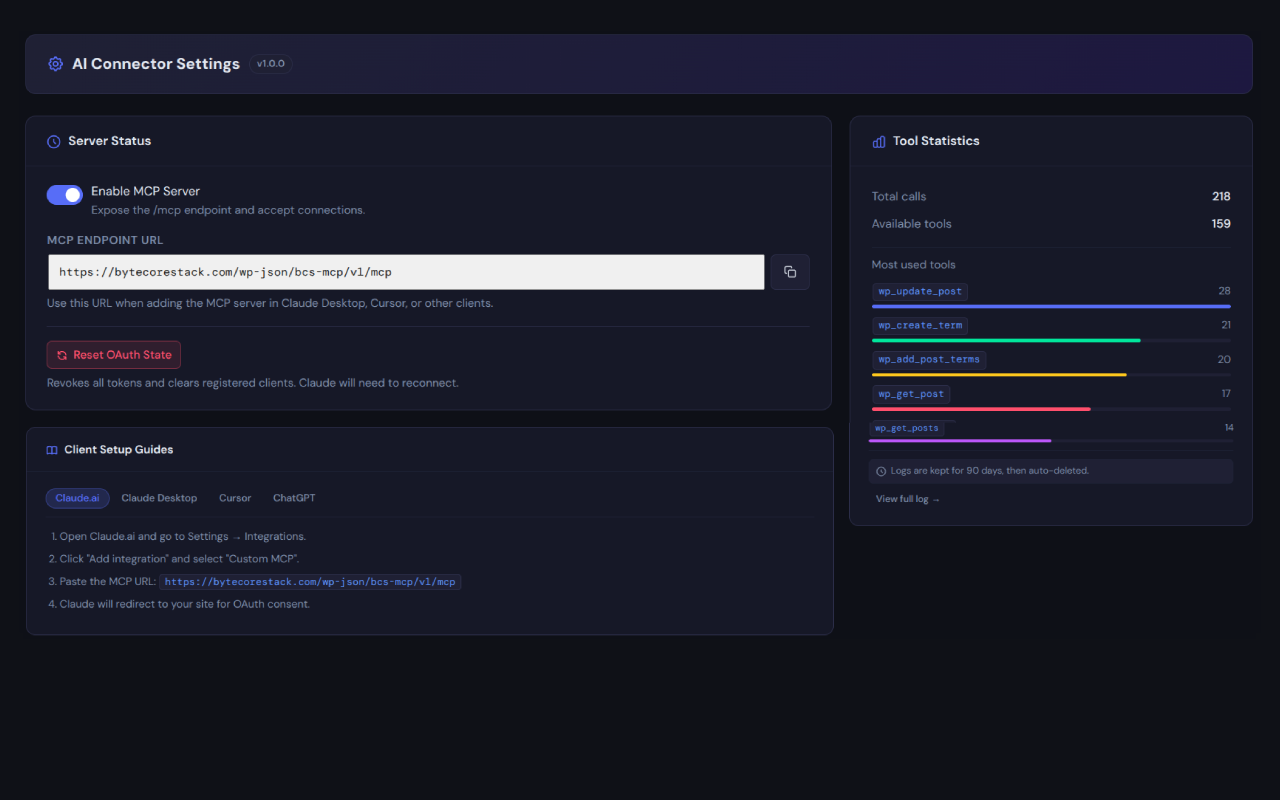
Authentication runs over OAuth 2.0 with PKCE, the same flow used by Google, Microsoft, and Slack — no shared API key, no third-party relay, and every action is capability-checked, logged, and reversible from Settings Reset OAuth State.
See the Other Notes tab below for the full category breakdown, supported AI clients, security details, and setup instructions.
Links
What Can an AI Agent Do With WordPress?
- „Draft and publish a blog post about [topic], generate a featured image, and tag it correctly.“
- „Show me yesterday’s WooCommerce orders over $100 and refund order #1042.“
- „Find every page with a missing or duplicate SEO title and fix it.“
- „Duplicate this Elementor page, swap the hero image, and update the headline.“
- „List my WooCommerce coupons expiring this month and extend them by two weeks.“
- „Trigger an UpdraftPlus backup before I start a big content migration.“
Why Choose ByteCoreStack – MCP Connector for AI Tools for WordPress Automation?
- 316+ tools, 26 categories — one of the largest verified MCP tool sets for WordPress
- Multi-client — works with Claude, ChatGPT, Gemini, Cursor, Windsurf, and any MCP 2025-11-25 client
- Real OAuth 2.0 — full authorization code flow with PKCE, Dynamic Client Registration, and discovery endpoints — no shared API key
- Conservative by design — no tool can create a WordPress user; role changes require
promote_users - Local, redacted activity logging — every tool call is logged in your own database with sensitive values redacted
- Zero telemetry, ever — no analytics or tracking of any kind
- Grows with your stack — WooCommerce, ACF, Elementor, Bricks, Divi, Gravity Forms, WPForms, Ninja Forms, Contact Form 7, MemberPress, LearnDash, EDD, Redirection, UpdraftPlus, FluentCRM, BuddyPress, and The Events Calendar tools activate automatically when detected
- Open to extend — register your own custom MCP tools with one function call
Ideal For
- Agencies and freelancers who want to run day-to-day WordPress maintenance through an AI assistant instead of clicking through wp-admin one task at a time
- WooCommerce store owners who want an AI agent that can check orders, adjust stock, manage coupons, and handle subscriptions on request
- SEO teams and content editors running bulk metadata fixes, content audits, or multi-step publishing workflows
- Developers who want a real WordPress AI integration to build custom AI automation and AI workflow tools on top of
- Anyone already using Claude, ChatGPT, Cursor, or Windsurf who wants those tools to actually reach into WordPress instead of just describing what to do next
Supported AI Assistants & MCP Clients
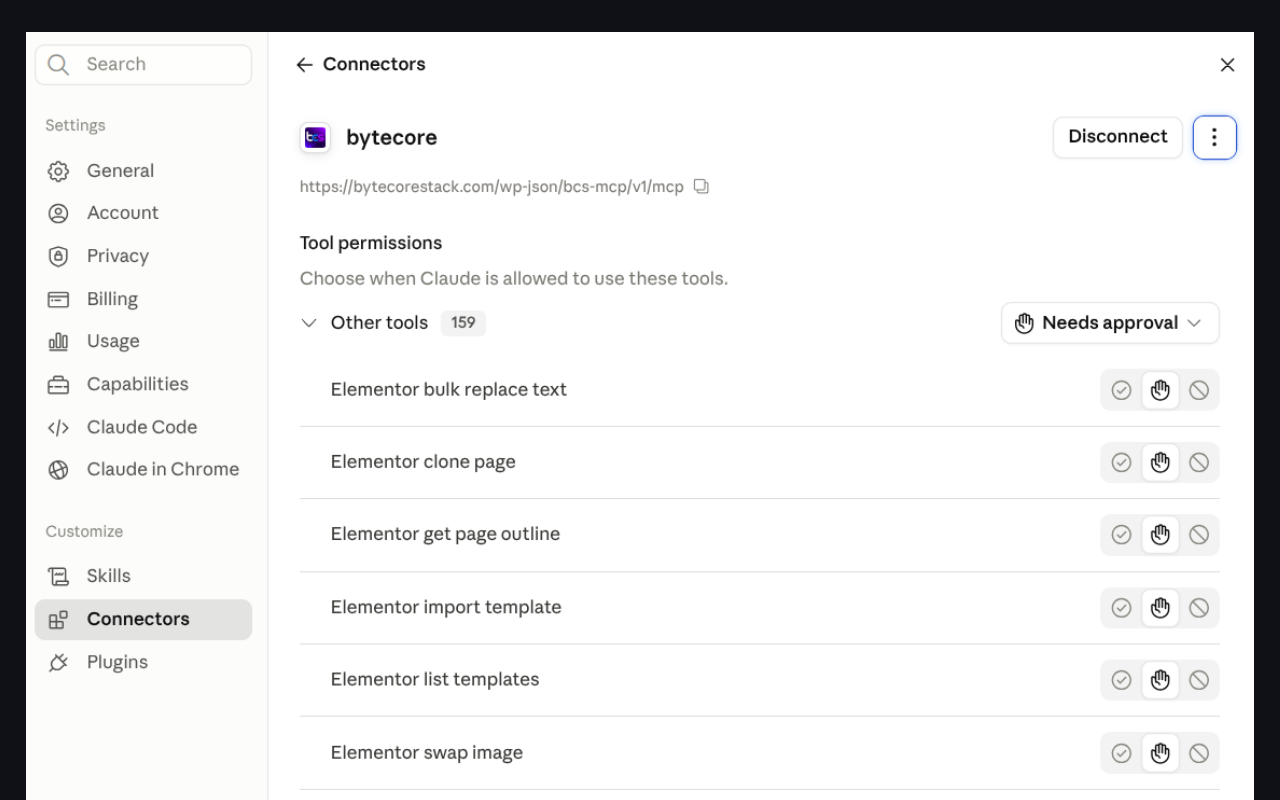
- Claude.ai — Settings Integrations Add integration Custom MCP
- Claude Desktop — add the MCP URL to
claude_desktop_config.jsonundermcpServers - Claude Code — connects over the same Streamable HTTP MCP endpoint
- ChatGPT — Settings Connectors Add connector MCP Server
- Gemini — connect via Google AI Studio MCP integrations
- Cursor (0.45+) — Settings MCP Add New Server HTTP (Streamable HTTP transport)
- Windsurf — MCP settings panel, supports both Streamable HTTP and legacy SSE
- VS Code, Cline, Continue, Zed, JetBrains and any other editor or IDE with MCP client support
- Postman, Insomnia and other API tools with MCP request support
- Any custom client or framework that implements the MCP 2025-11-25 specification
WordPress AI Tools by Category (316 Tools, Verified)
316 is the plugin’s total across every supported integration below. Tools marked (activates automatically) only appear to a connected AI client once the matching plugin is active on your site — see „My AI client shows fewer than 316+ tools — is that a bug?“ in the FAQ above for how the count works.
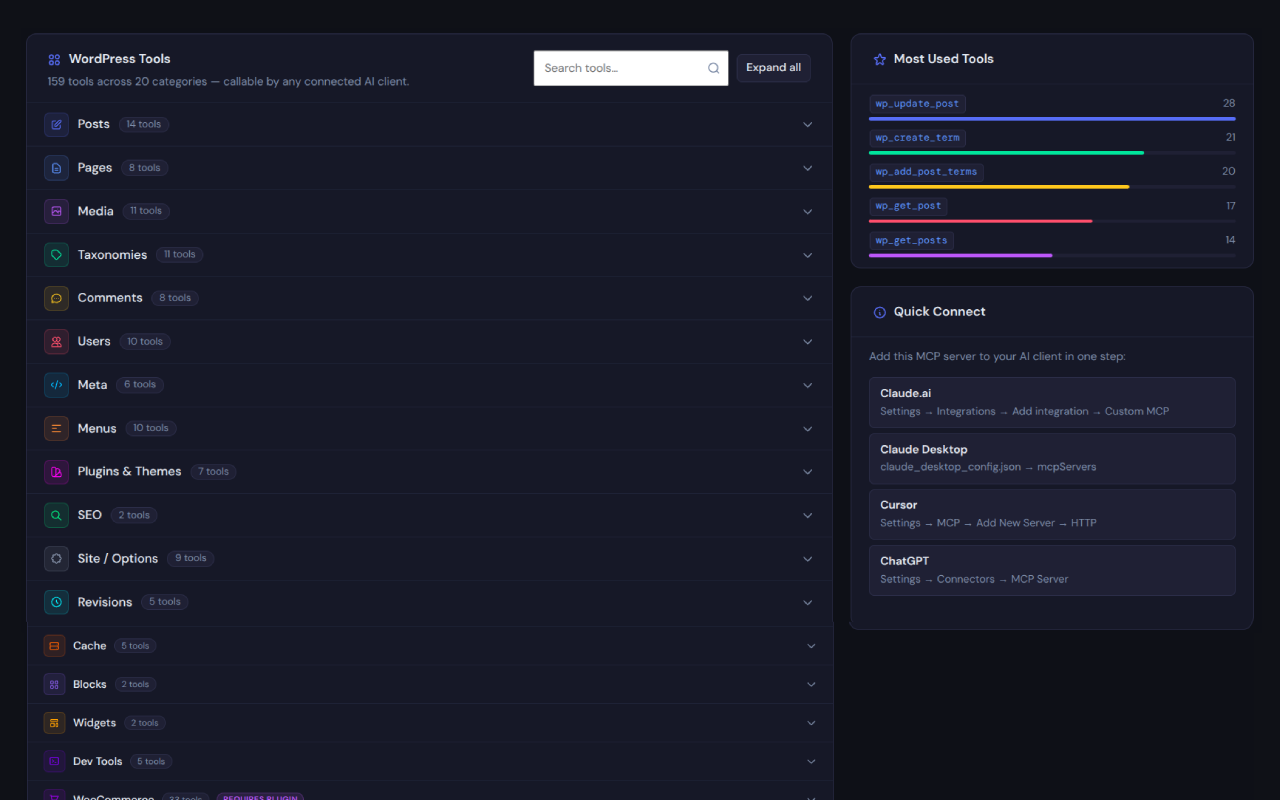
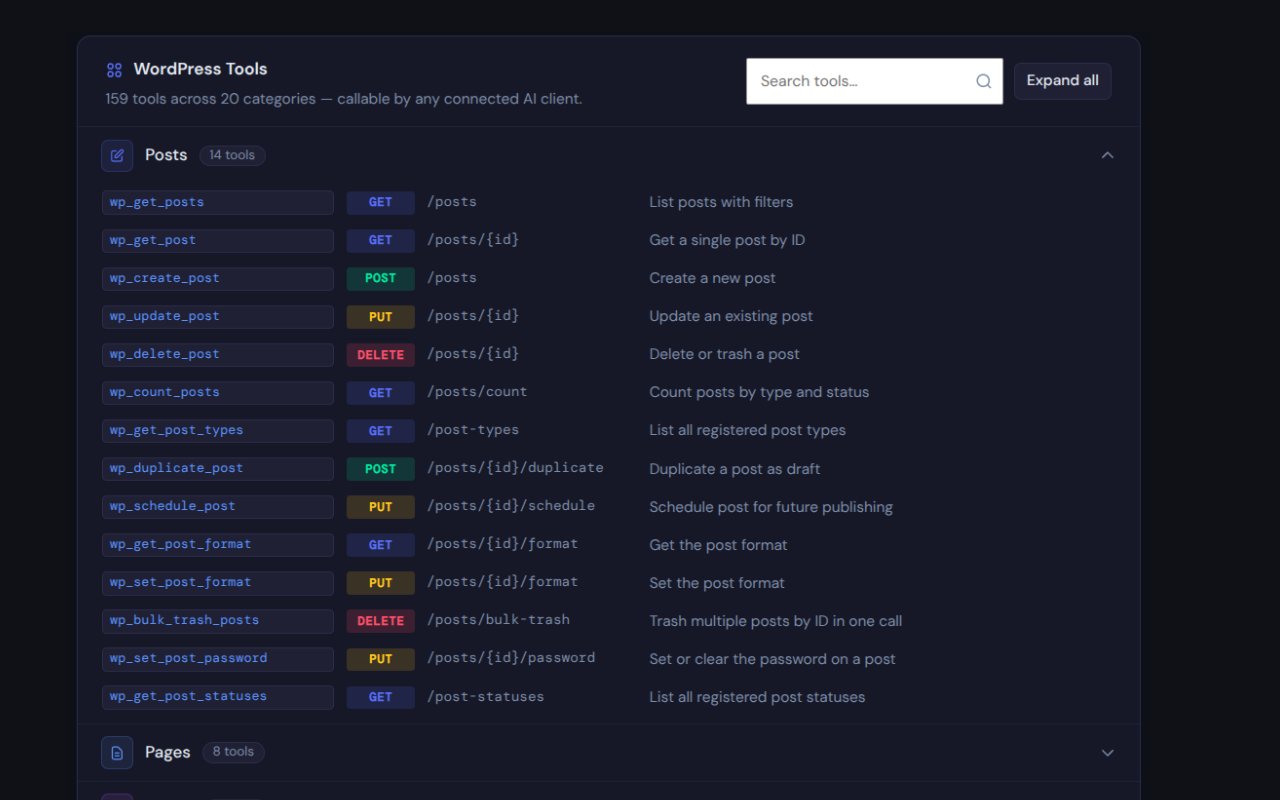
- Posts — 14 tools (create, read, update, delete, duplicate, bulk trash, schedule, search, count, post types & statuses, post format, password protection)
- Pages — 8 tools (CRUD, duplicate, page templates)
- Media — 11 tools (browse, upload from file or URL, update metadata, set featured image, regenerate thumbnails, attachment metadata, image sizes, count)
- Taxonomies — 11 tools (categories, tags, custom taxonomies, term meta, term assignment)
- Comments — 9 tools (CRUD, approve, spam, trash, bulk delete, pending queue)
- Users — 11 tools (list, view, update, delete, sessions, roles, password reset, CSV export — no creation tool, by design)
- Menus — 11 tools (menus, menu items, reordering, duplication, location assignment)
- Plugins & Themes — 7 tools (list, activate, deactivate, active theme, theme mods, custom CSS)
- SEO, Redirects & Content Quality — 12 tools (per-post and bulk SEO meta across 6 SEO plugins, site-wide SEO settings, URL redirects (requires Redirection), missing alt text, broken links, orphaned media, content gap audit)
- Site / Options — 17 tools (site info, site health, full Site Health diagnostics, multisite status, permalink structure, plugin settings, database size, send email, cron jobs, rewrite rules, shortcode execution, plus post/user meta read/write/delete)
- Content Structure & Revisions — 9 tools (post revision history and restore, permalink structure, reusable blocks, block parsing and patterns, registered sidebars and widgets)
- Site Health & Diagnostics — 17 tools (cache detection/flush/purge, transients, server info, database size/optimize, search & replace, debug and error log, plugin/core update status, PHP runtime info, SSL certificate status, outgoing mail configuration (requires WP Mail SMTP))
- WooCommerce (activates automatically) — 43 tools (products, variations, attributes, coupons, orders, refunds, customers, shipping zones, tax rates, store stats, sales report, top sellers, low-stock alerts, customer lifetime value, product performance, payment gateways, subscriptions, bookings)
- Easy Digital Downloads (activates automatically) — 5 tools (products, orders, single order detail, customers, store stats)
- Advanced Custom Fields (activates automatically) — 14 tools (field groups CRUD and duplication, full field group definitions, field values, field updates, options page read/write and discovery, repeater/flexible content row add/delete, Local JSON sync status)
- Page Builders (activates automatically) — 11 tools across Elementor, Bricks, and Divi (clone page, bulk text replace, image swap, page outline, template import/listing, global widgets, raw page data)
- Forms (activates automatically) — 15 tools across Gravity Forms, Contact Form 7, WPForms, Ninja Forms, Formidable Forms, Ultimate Member, and User Registration (list forms, read entries/submissions/fields, create/update Gravity Forms entries)
- Backup & Migration (activates automatically) — 5 tools across UpdraftPlus, Duplicator, and All-in-One WP Migration (list backups/packages, trigger a backup, check job status)
- Marketing & CRM (activates automatically) — 14 tools across FluentCRM, Mailchimp for WP, AffiliateWP, GiveWP, and WP Simple Pay (contacts, campaigns, lists, subscribers, affiliates, referrals, creatives, donation forms/donations/donors, payment forms)
- Membership & LMS (activates automatically) — 12 tools across LearnDash, MemberPress, Restrict Content Pro, and WooCommerce Memberships (courses, course progress, enrollment, memberships, members, subscription history, grant a membership)
- Community & Forums (activates automatically) — 12 tools across BuddyPress and bbPress (members, extended profile fields, activity stream, groups, group members, friends, forums, topics, replies)
- The Events Calendar (activates automatically) — 9 tools (events CRUD, venues, organizers, event categories)
- WPML / Polylang / TranslatePress (activates automatically) — 10 tools (list active languages, get/set a post’s language, get a post’s or a term’s translations, create a linked translation, plus Polylang String Translations and a translatable post types/taxonomies list (requires Polylang), and default/configured languages plus string translation search (requires TranslatePress))
- Analytics (activates automatically) — 11 tools across Google Site Kit, WP Statistics, and MonsterInsights (Google Analytics report, top pages, AdSense earnings and Search Console queries via Site Kit; visit summary, top pages, online users, referrers, and browser/platform/country breakdown via WP Statistics; connection status and settings via MonsterInsights)
- Developer & Import Tools (activates automatically) — 9 tools across WP All Import, WP All Export, Custom Post Type UI, and Code Snippets (import/export definitions, full post type & taxonomy CRUD through CPT UI, and a snippet audit list)
- Security & Compliance (activates automatically) — 9 tools across Wordfence, Two Factor, CookieYes, Complianz, Akismet, Jetpack, and Sucuri Security (scan issues, firewall status, 2FA status per user, cookie consent status, spam stats, connection status)
ByteCoreStack – MCP Connector for AI Tools Key Features
- 316+ WordPress MCP tools across 26 categories — see the full breakdown above
- OAuth 2.0 with PKCE — full authorization code flow with Dynamic Client Registration and discovery endpoints
- Streamable HTTP transport (MCP 2025-11-25) with legacy SSE fallback for older clients
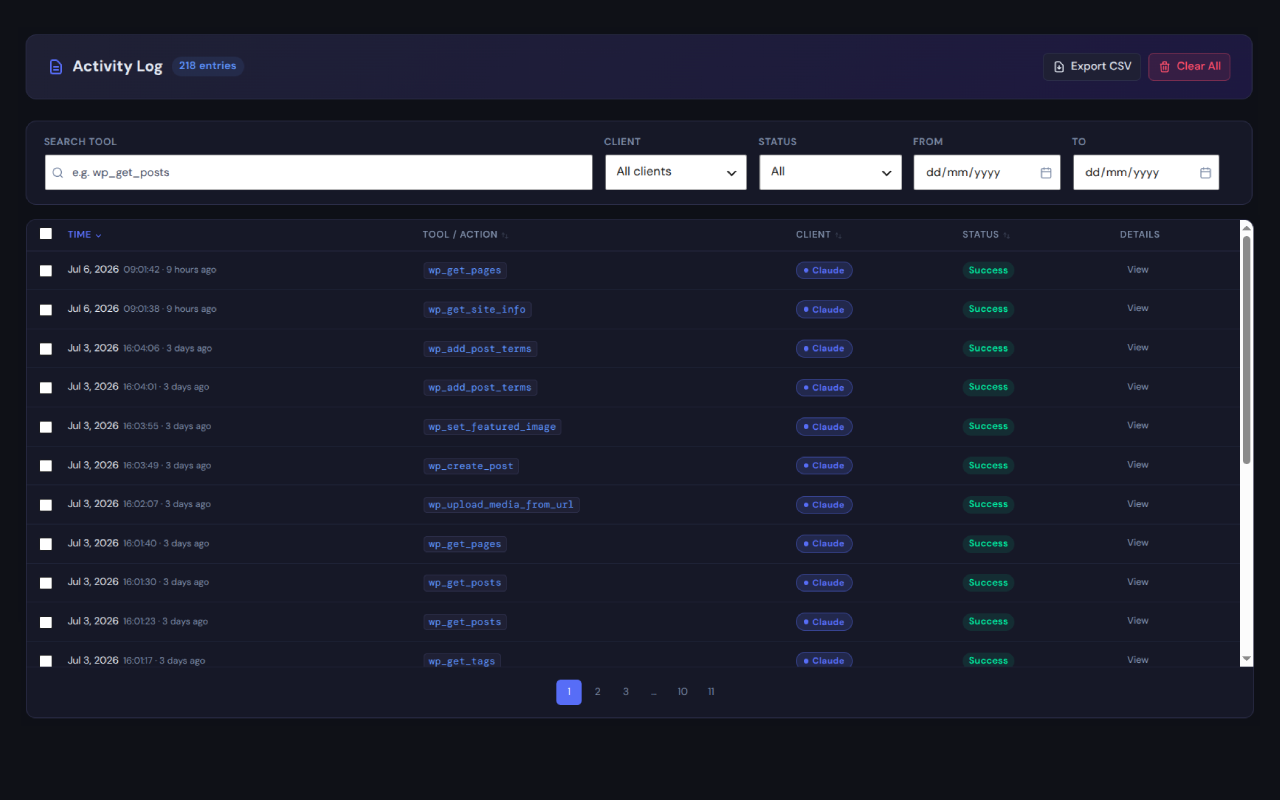
- Activity log — every tool call recorded with client detection, filters, bulk delete, and CSV export; sensitive values redacted
- Rate limiting — 60 requests/minute per IP on
/mcp, enforced automatically - IP allowlist — optionally restrict MCP access to specific IPs or CIDR ranges
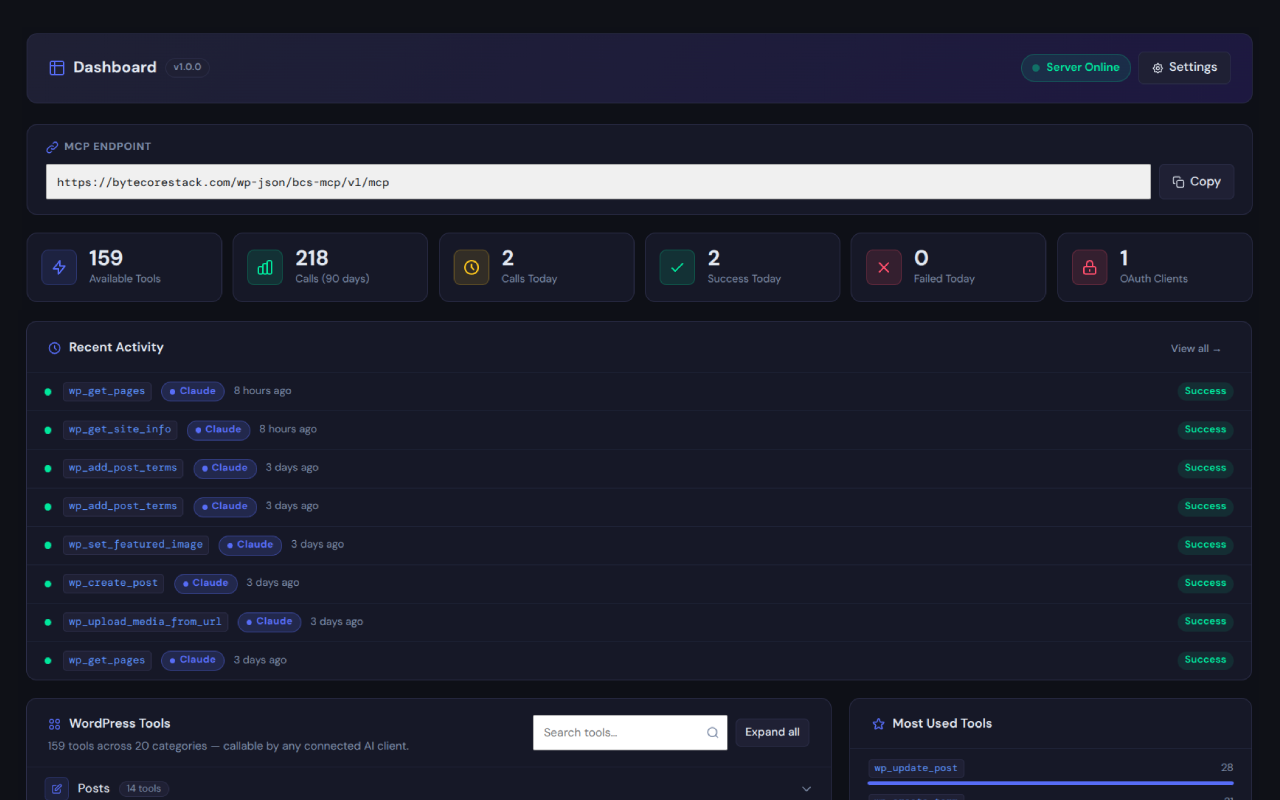
- Admin dashboard — live server status, OAuth client count, today’s success/fail counts, and a searchable tools browser
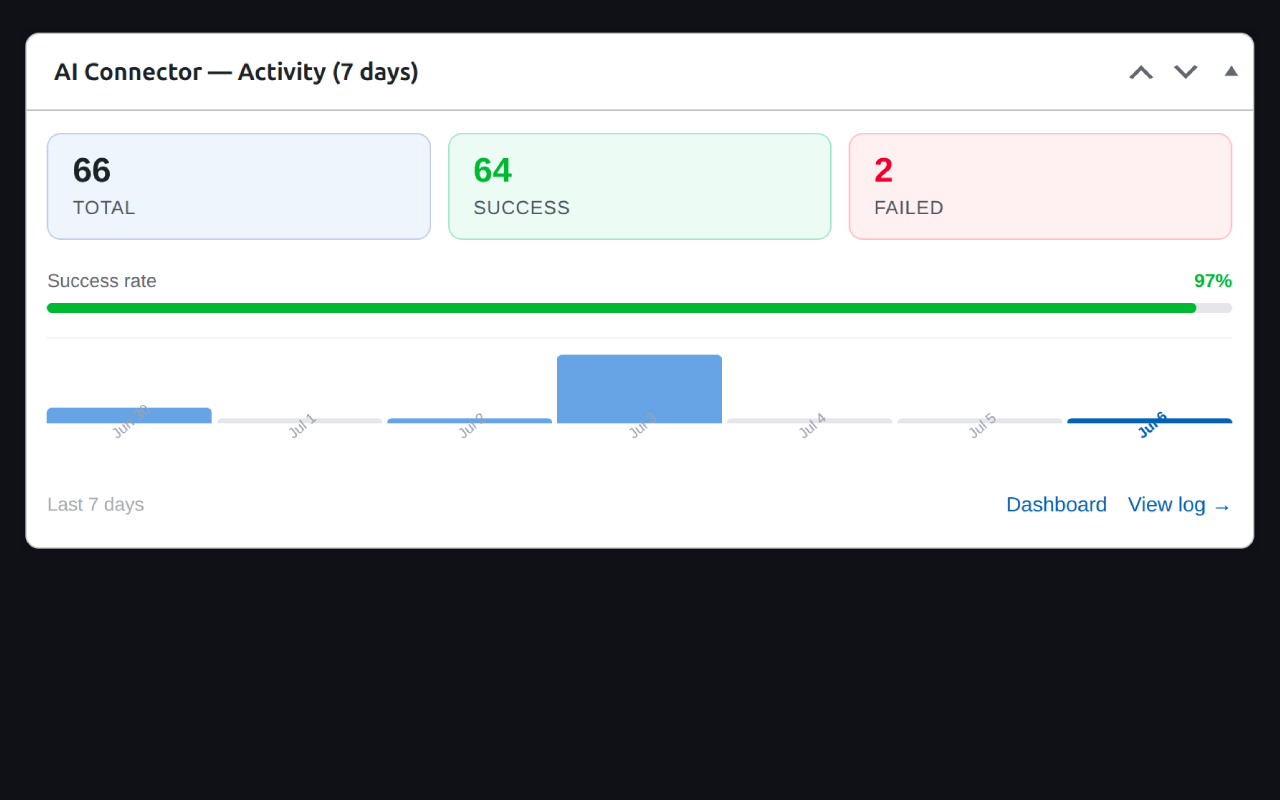
- WP Dashboard widget — 7-day activity sparkline right on your wp-admin home screen
- Translation-ready — ships with a complete
.potfile in/languages - Developer-friendly — extend with
bcs_mcp_register_tool()or thebcs_mcp_toolsfilter
WooCommerce, Elementor, ACF & Forms Plugin Integration
Tools for these plugins are included in the box but only activate when the respective plugin is installed and active. No errors are thrown if a plugin is absent, and nothing extra needs configuring. The MCP tool list shown to a connected AI client only ever includes tools whose dependencies are actually satisfied on your site — so a site without WooCommerce simply never advertises WooCommerce tools to the AI. The same applies to WooCommerce Subscriptions, WooCommerce Bookings, UpdraftPlus, FluentCRM, BuddyPress, and The Events Calendar.
Multisite Support
ByteCoreStack – MCP Connector for AI Tools works on WordPress multisite networks the same way it works on a single site: each site in the network has its own settings, its own MCP endpoint, and its own Activity Log. There is no cross-site tool access — an AI client connected to one site can never reach another site’s data through this plugin. The wp_get_multisite_info tool reports network status and lists network sites for site owners who need it.
Extending ByteCoreStack – MCP Connector for AI Tools (Developer API)
Register custom tools from any plugin or theme:
bcs_mcp_register_tool( 'my_tool', 'Description', $schema, $callback );
Or use the bcs_mcp_tools filter directly to add, modify, or remove tools before they’re advertised to a connecting AI client.
Security & Permissions
- All tool calls verify WordPress capabilities (
current_user_can) before executing — an AI client can never do more than the authorizing user is allowed to do - No MCP tool can create new WordPress users — user accounts must be created through wp-admin, full stop
- Role changes (
wp_assign_user_role) require thepromote_userscapability, not justedit_users - OAuth tokens are SHA-256 hashed before database storage — plain tokens are never stored
- PKCE (S256) is required for all authorization flows; plain challenges are rejected
- Every
/mcprequest is rate-limited to 60 requests per minute per IP address (tracked byREMOTE_ADDRonly — spoofable headers likeX-Forwarded-Forare never trusted for this check), returning HTTP 429 once exceeded - Dynamic Client Registration is separately rate-limited to 10 registrations per IP per minute, preventing abuse of the open registration endpoint
- Sensitive meta keys (
user_pass,session_tokens, and similar) are permanently blocked from read/write, with no setting to disable the block - The Activity Log stores tool name, timestamp, client, status, and the call’s parameters/result for audit purposes, all locally in your own database — any value that looks like a password, token, secret, or key is redacted before it’s written, and large content fields are truncated
- Outbound image downloads validate URLs against a blocklist of private/loopback IP ranges (SSRF protection) and enforce a 20 MB size limit
- All admin AJAX actions are protected by nonce verification and a
manage_optionscapability check - Session termination (
DELETE /mcp) requires a valid bearer token - CSV exports (
wp_export_users_csv) neutralize spreadsheet formula-injection characters and escape embedded quotes before writing rows - Dynamic database table names are passed through
$wpdb->prepare()‚s%iidentifier placeholder rather than interpolated directly into query strings - The MCP server ships disabled by default — nothing is exposed until you explicitly enable it in Settings
External Services
This plugin operates primarily as an inbound API server — AI clients connect to it, not the other way around. No data is sent to any external service automatically or in the background.
Image download via wp_upload_media_from_url
The wp_upload_media_from_url MCP tool, when explicitly invoked by an authenticated AI client (e.g. Claude), makes a single outgoing HTTP GET request to download an image from the URL the AI client provides. This request:
- Is only made when the tool is called by a connected, OAuth-authenticated MCP client
- Carries no personal data beyond the image URL itself
- Is validated against a blocklist of private/loopback IP ranges before the request is made
- Is subject to a 20 MB size limit
No data is sent to the plugin author’s servers at any time. This plugin does not include analytics, telemetry, or tracking of any kind.
Snímky obrazovky
Instalace
- Upload the
bcs-mcp-managerfolder to/wp-content/plugins/, or install directly from the WordPress.org plugin directory. - Activate the plugin via Plugins Installed Plugins.
- Running Wordfence, All In One WP Security, or a similar security plugin? Check its firewall settings for a „restrict/disable the REST API for logged-out users“ toggle and turn it off (or allowlist this plugin’s URLs) before connecting an AI client — see the dedicated FAQ entry below. This is the single most common reason a connection fails on the first try.
- Go to ByteCoreStack – MCP Connector for AI Tools Settings and enable the MCP server.
- Copy the MCP URL shown on the Dashboard page.
- Paste the MCP URL into your AI client (Claude.ai, Claude Desktop, ChatGPT, Gemini, Cursor, or Windsurf) and complete the one-time OAuth authorization.
- Open the Activity Log to confirm tool calls are arriving, and use the WP Dashboard widget to keep an eye on activity going forward.
Nejčastější dotazy
-
Is ByteCoreStack – MCP Connector for AI Tools free?
-
Yes, the plugin is completely free with no premium tiers, license keys, usage caps, or feature paywalls — every tool listed in this readme is included.
-
I have Wordfence, All In One WP Security, or another security plugin — do I need to change anything before connecting?
-
Possibly, yes — check this before you report a connection failure as a bug. Security plugins commonly ship a firewall setting that restricts or disables the WordPress REST API for anyone who isn’t logged into wp-admin. This plugin’s MCP/OAuth endpoints are intentionally reachable without a WordPress login — they authenticate the AI client themselves via OAuth 2.0 Bearer tokens, not a WordPress session — so that kind of blanket „REST API requires login“ setting is the wrong gate for them.
As of version 1.2.1, this plugin automatically exempts its own routes from that specific kind of lockdown, so most users won’t need to do anything. But if a connection still fails after updating:
- In your security plugin’s firewall settings, look for a „restrict/disable the REST API for logged-out users“ (or similarly worded) toggle and turn it off, or add an allowlist entry for this plugin’s URLs instead.
- Allowlist these paths specifically:
/.well-known/oauth-protected-resource,/.well-known/oauth-authorization-server,/authorize,/token,/register, and/wp-json/bcs-mcp/*. - Make sure the HTTP
DELETEmethod isn’t blocked for/wp-json/bcs-mcp/*— some firewalls block it by default (used for MCP session cleanup). - Run ByteCoreStack – MCP Connector for AI Tools Diagnostics Test Connection — it detects active security plugins and gives you a specific, current status for each check rather than a generic pass/fail.
Two important exceptions this plugin cannot fix on its own — but will now tell you about automatically (as of 1.2.1) via a dismissible notice on the Plugins screen and this plugin’s own screens:
-
Some hosting environments (particularly nginx-based hosts and some CDNs) block access to any dot-prefixed path — like
.well-known/,.env, or.git— at the web server level, before the request ever reaches WordPress or PHP. If Diagnostics or the admin notice reports that the discovery endpoint’s response „never reached WordPress,“ that’s this case: no WordPress or security-plugin setting can fix it, because it’s not being blocked by WordPress or the plugin — it’s blocked by the server/CDN infrastructure itself. You’ll need to ask your hosting provider (or your CDN, e.g. Cloudflare, Sucuri) to explicitly allow/.well-known/*through, since OAuth (RFC 8414) requires that path to be reachable.SiteGround specifically is the most commonly reported case of this. SiteGround’s nginx reserves the entire
/.well-known/prefix for their own SSL certificate (ACME) validation and returns a 404 for anything else under it — fleet-wide, and per multiple independent reports SiteGround support has declined to adjust this per-site, so a support ticket may not resolve it. You can confirm you’re on SiteGround by checking the response headers athttps://yoursite.com/.well-known/oauth-authorization-serverforX-CDN-C: static(SiteGround’s free CDN tier signature). If that’s your situation, the two working paths are:- Put Cloudflare (free tier works) in front of your site, and add a Cloudflare Worker or Page Rule that intercepts
/.well-known/oauth-authorization-serverand/.well-known/oauth-protected-resourcespecifically and serves/proxies them before the request ever reaches SiteGround’s nginx. This is the workaround other SiteGround-hosted sites in this situation have used successfully. - Ask SiteGround support anyway to allowlist those two specific paths for your domain — low odds based on other reports, but it costs nothing to ask.
- Put Cloudflare (free tier works) in front of your site, and add a Cloudflare Worker or Page Rule that intercepts
- Some hosts redirect
POST /registerto/register/with an HTTP 301 (a generic trailing-slash canonicalization rule). OAuth clients don’t follow redirects on POST requests, so registration silently dies before it ever reaches this plugin — even when.well-known/discovery works perfectly fine. This is also a web-server config issue, not a WordPress setting; ask your host to exempt/register,/token, and/authorizefrom trailing-slash redirects.
-
My host blocks /.well-known/ and won’t fix it (e.g. SiteGround) — can I manually add an OAuth Client ID in my AI client to work around it?
-
Maybe, and it’s worth trying, but understand what it does and doesn’t fix before you spend time on it. This plugin has no admin screen for pre-creating a Client ID/Secret — the only way to get one is to call this plugin’s own
/registerendpoint directly (the same endpoint your AI client would normally call automatically):curl -X POST https://yoursite.com/register -H "Content-Type: application/json" -d '{"client_name": "Claude", "redirect_uris": ["https://claude.ai/api/mcp/auth_callback"], "token_endpoint_auth_method": "client_secret_post", "grant_types": ["authorization_code", "refresh_token"]}'The JSON response contains
client_idandclient_secret— paste both into your AI client’s connector settings.The catch: supplying a Client ID only skips the registration step. Your AI client still needs to know where
/authorizeand/tokenlive, and it normally learns that by reading/.well-known/oauth-authorization-server— the exact document that’s blocked in this scenario. A Client ID alone doesn’t tell it where to send the user for consent or where to exchange the authorization code. Before generating one, check whether your AI client’s connector settings also have fields to manually specify the authorization and token endpoint URLs (https://yoursite.com/authorizeandhttps://yoursite.com/token) alongside the Client ID/Secret. If those fields don’t exist, this workaround won’t fully solve a blocked.well-known/path — you’ll need the Cloudflare-in-front-of-your-host fix described in the previous FAQ entry instead. -
Will updating to version 1.1.0 break my existing AI connection or settings?
-
No. Version 1.1.0 is a fully backward-compatible update: your existing OAuth connection, access tokens, Settings, and Activity Log history all carry over automatically — nothing is reset, revoked, or reconfigured. The plugin was renamed from „AI Connector – MCP for Claude, ChatGPT, Gemini & More“ to „ByteCoreStack – MCP Connector for AI Tools,“ but the plugin slug, database tables, and MCP URL are unchanged, so Claude, ChatGPT, Gemini, Cursor, and Windsurf all keep working without needing to reconnect. New tools simply appear the next time your AI client refreshes its tool list.
-
What is MCP (Model Context Protocol)?
-
MCP is an open standard, originally created by Anthropic, that lets AI assistants like Claude and ChatGPT securely connect to external tools and data sources using a structured, authenticated protocol instead of free-text copy-paste. This plugin implements a full MCP server inside WordPress so any MCP-compatible AI client can read and manage your site’s content directly.
-
What’s the best MCP server for WordPress?
-
There are a few MCP servers for WordPress, and the right one depends on what you need. ByteCoreStack – MCP Connector for AI Tools’s focus is breadth of verified tools (316+ across 26 categories), real OAuth 2.0 with PKCE instead of a shared API key, and zero telemetry — every action is capability-checked and recorded in your own database rather than sent anywhere else. If you’re comparing options, look closely at tool coverage, how authentication actually works, and what happens to your data; ByteCoreStack – MCP Connector for AI Tools is built to hold up well on all three.
-
Which AI clients are supported?
-
Any client that implements the MCP 2025-11-25 Streamable HTTP transport. Tested and confirmed working with Claude.ai, Claude Desktop, Claude Code, ChatGPT, Cursor (0.45+), and Windsurf. Gemini uses the same standard protocol and is expected to work via Google AI Studio’s MCP integrations. Editors and IDEs with general-purpose MCP client support — VS Code, Continue, Cline, Zed, JetBrains — and API tools like Postman also connect successfully. Older client versions that use the legacy SSE transport are supported via the
/sseendpoint. -
Can an AI agent manage my entire WordPress site?
-
It can call any of the 316+ MCP tools this plugin exposes — content, WooCommerce, SEO, media, comments, users, backups, CRM, and more — but always scoped to what the authorizing WordPress user is allowed to do. No MCP tool creates new WordPress users, and role changes require the
promote_userscapability specifically. Think of it as an AI assistant with exactly the permissions of whoever connected it, not an unsupervised admin. -
How do I connect Claude.ai to my WordPress site?
-
Go to Claude.ai Settings Integrations Add integration Custom MCP. Paste your MCP URL (
https://yoursite.com/wp-json/bcs-mcp/v1/mcp) and follow the OAuth authorization flow. Claude handles client registration and token management automatically. -
How do I connect ChatGPT?
-
In ChatGPT: Settings Connectors Add connector MCP Server. Paste your MCP URL and complete the OAuth flow. Your site must be publicly accessible (not localhost) and on HTTPS.
-
How do I connect Claude Desktop?
-
Add the following to your
claude_desktop_config.jsonfile undermcpServers:"wordpress": { "url": "https://yoursite.com/wp-json/bcs-mcp/v1/mcp", "transport": "http" }Restart Claude Desktop and authorize via the OAuth consent page that opens in your browser.
-
How do I connect Cursor?
-
In Cursor: Settings MCP Add New Server select type HTTP paste your MCP URL. Cursor uses the Streamable HTTP transport and sessions tracked via the
Mcp-Session-Idheader. Ensure your WordPress site is on HTTPS. -
How do I connect Windsurf?
-
Open Windsurf’s MCP settings and add a new server with your MCP URL. Recent Windsurf versions use Streamable HTTP; older versions connect via the legacy SSE endpoint at
/sse. Both are supported automatically. -
Does this work with WooCommerce?
-
Yes. 36 tools covering products, variations, attributes, coupons, orders, refunds, customers, shipping zones, tax rates, payment gateways, store statistics, subscriptions, and bookings activate automatically once WooCommerce (and WooCommerce Subscriptions / Bookings, where relevant) is detected — no extra configuration required.
-
Does this work with Elementor, ACF, or Gravity Forms?
-
Yes, all three are supported. Tools for each only become active when the respective plugin is installed and active, and the AI client only ever sees the tools whose dependencies are actually satisfied on your site.
-
Does this work with backup and CRM plugins?
-
Yes. UpdraftPlus tools let an AI client list backups, trigger a new backup, and check job status. FluentCRM tools let it list contacts, create or update a contact, and list email campaigns. Both integrations activate automatically when the respective plugin is detected — no extra setup required.
-
Does this work with BuddyPress or The Events Calendar?
-
Yes. BuddyPress tools cover members, extended profile fields, the activity stream, groups, group members, and friend connections. The Events Calendar tools cover full event CRUD plus venues, organizers, and event categories. Both activate automatically when the respective plugin is detected — no extra configuration required.
-
Which SEO plugins are supported?
-
Yoast SEO, Rank Math, All in One SEO, SEOPress, Slim SEO, and The SEO Framework. The plugin detects whichever one is active and reads/writes its native storage directly — per-post title, meta description, focus keyword, and noindex status, plus site-wide title separator and homepage title/description.
-
My AI client shows fewer than 316+ tools — is that a bug?
-
No, that’s expected. 316+ is the plugin’s total tool count across every supported integration. The list your AI client actually sees is filtered down to only the tools that will work on your specific site — so anything gated behind a plugin you don’t have active (WooCommerce, ACF, Elementor, a supported SEO plugin, BuddyPress, The Events Calendar, and so on) simply isn’t advertised. A fresh WordPress install with none of those companion plugins active will see roughly 124 core tools; each supported plugin you activate adds its tools to the list automatically. To see the full 316+, install and activate every supported integration.
-
Can I add my own custom tools?
-
Yes. Use
bcs_mcp_register_tool()or thebcs_mcp_toolsfilter from any plugin or your theme’sfunctions.php. See the Other Notes tab for a code example. -
Can AI delete or change things without my permission?
-
Every tool call is checked against real WordPress capabilities before it runs — an AI client can never do more than the authorizing user is allowed to do. Destructive actions are logged in the Activity Log, and you can revoke access instantly from Settings Reset OAuth State.
-
Can AI create new WordPress users or admin accounts?
-
No, and there is no setting to turn this on. No MCP tool in this plugin can create a WordPress user under any circumstance — new accounts must always be created through wp-admin by a human. Role changes are still possible through
wp_assign_user_role, but only for a token authorized by a user with thepromote_userscapability. -
Can I restrict which IPs can connect?
-
Yes. Add an IP allowlist (single IPs or CIDR ranges) in Settings, and the MCP endpoint will reject any request from outside that list.
-
Is there rate limiting to prevent abuse?
-
Yes. Every request to the
/mcpendpoint is limited to 60 requests per minute per IP address, enforced automatically with no configuration needed — requests over that limit get an HTTP 429 response instead of reaching your database. Dynamic Client Registration (the endpoint AI clients use to register themselves) has its own separate limit of 10 registrations per IP per minute. -
Can I use this for WordPress AI automation and workflows?
-
Yes. Because ByteCoreStack – MCP Connector for AI Tools exposes real WordPress actions as MCP tools instead of just answering questions, your AI assistant can chain several steps together in one request — draft a post, generate a featured image, assign categories, and publish, for example. Each step still runs through the same permission checks and Activity Log as if you’d done it by hand in wp-admin.
-
Does this plugin collect any user data or telemetry?
-
No external telemetry of any kind. The Activity Log does record each tool call’s parameters and result locally, in your own WordPress database, so you can audit and debug what your AI client has done — values that look like passwords, tokens, or secrets are redacted before they’re written, and large content fields are truncated. None of this data is ever sent anywhere outside your own server, and the plugin includes zero analytics or tracking code.
-
Will this slow down my WordPress site?
-
No. The MCP server only runs when an AI client actively makes a request to the
/mcpendpoint — there is no background polling, no front-end script, and no impact on normal page load times for your visitors. -
Does this work on WordPress multisite?
-
Yes, per-site. Each site on the network gets its own settings, its own MCP URL, and its own Activity Log. There is no shared or cross-site tool access. The
wp_get_multisite_infotool lets a connected AI client check network status and list network sites when multisite is enabled. -
What happens if I uninstall the plugin?
-
A clean uninstall removes every database table the plugin created (logs, OAuth tokens, OAuth clients, authorization codes), every plugin option, and every transient it set. No orphaned data is left behind in your database.
-
I restored my site from a backup and my AI client can’t reconnect. What do I do?
-
Database restores can leave your AI client holding OAuth credentials that no longer match what’s stored on the (restored) site. Go to ByteCoreStack – MCP Connector for AI Tools Settings Reset OAuth State to clear all stored tokens and client registrations, then remove and re-add the connector in your AI client to trigger a fresh authorization flow.
-
I see „Couldn’t register with sign-in service“ in Claude
-
Claude shows this when it can’t reach
/registeror the/.well-known/oauth-authorization-serverdiscovery endpoint it depends on. There are two distinct causes with different fixes:- OAuth rewrite rules haven’t been flushed. Log in to wp-admin — the plugin auto-flushes on the first admin page load after each update. If the error persists, go to Settings Permalinks and click Save Changes.
- Your web server or CDN is blocking
/.well-known/*before it ever reaches WordPress. This is a different problem than #1, and no WordPress or plugin setting can fix it. Many nginx-based hosts ship a blanket rule blocking any dot-prefixed path (meant to block.env/.git/.htaccessexposure) that also catches.well-known/, which OAuth (RFC 8414) requires to be reachable. You can tell the two apart: visithttps://yoursite.com/.well-known/oauth-authorization-serverdirectly in a browser — if you get your site’s normal 404 page, it’s #1; if you get a bare, unstyled 404 with no site branding at all (or the connection just times out), it’s #2. For #2, run Diagnostics Test Connection — as of 1.2.1 it detects this specific case and tells you plainly. The fix has to happen at the server/CDN level: ask your host or CDN provider (e.g. Cloudflare) to explicitly allow/.well-known/*through their firewall/dotfile-blocking rule.
-
Cursor says it can’t establish a session
-
Ensure your WordPress site is on HTTPS and publicly accessible. Cursor requires the
Mcp-Session-Idheader in the server’sinitializeresponse — this plugin sends it correctly. If you’re behind a caching plugin or CDN, make sure/wp-json/bcs-mcp/*is excluded from caching. -
My site uses nginx. Will SSE work?
-
Yes. The plugin sends
X-Accel-Buffering: noon SSE responses to prevent nginx from buffering the stream. No additional nginx configuration is required. -
My site is on HTTP (not HTTPS). Will this work?
-
OAuth 2.0 requires HTTPS for security, and most AI clients will refuse to connect to non-HTTPS endpoints. A valid SSL certificate is strongly recommended. For local development with localhost, HTTP is allowed by the OAuth redirect URI validator.
-
How do I disconnect an AI client?
-
Go to ByteCoreStack – MCP Connector for AI Tools Settings Reset OAuth State. This revokes all tokens and clears all registered clients. Any connected AI client will need to re-authorize.
-
I see „This connector has no tools available“ the first time I connect, but disconnecting and reconnecting fixes it. Is this a bug in the plugin?
-
No — this is a confirmed Claude Desktop client bug, not a server-side issue. Anthropic’s own GitHub tracker documents it (issue #60222 and related reports #5826, #22299, #23736, #14807, #38343): the first
tools/listcall after connecting a Streamable HTTP + OAuth connector can fail or return empty in Claude Desktop specifically, and the affected server’s own logs show zero incoming traffic during the failure — proving the request never left the client. The same connection works without issue through Claude Code CLI and Claude.ai web the whole time. Anthropic closed the issue as „not planned,“ so there’s no fix timeline, and nothing on the server side can prevent it since it happens before any request reaches this plugin.The workaround is exactly what fixes it for you: disconnect and reconnect the connector, which re-runs
initialize/tools/listand typically restores the tool list. If a tool call ever seems to hang or silently no-op right after reconnecting, try it once more — the same report notes the very first call can occasionally still fail once before settling. -
My connection broke after a plugin or theme update. Where do I start troubleshooting?
-
Update to the latest version of ByteCoreStack – MCP Connector for AI Tools first — most connection issues are fixed in the next release. If the problem persists: (1) temporarily deactivate other plugins to rule out a conflict, (2) check that your caching plugin or CDN excludes
/wp-json/bcs-mcp/*, (3) reset OAuth state from Settings and reconnect, (4) check the Activity Log for the specific error status on the failing tool call. -
I have Wordfence, All In One WP Security, or another security plugin — my AI client can’t connect. What do I do?
-
See „I have Wordfence, All In One WP Security, or another security plugin — do I need to change anything before connecting?“ near the top of this FAQ for the full walkthrough (what this plugin already handles automatically, what to allowlist manually, and the separate server/CDN-level
.well-knownblocking case that no plugin setting can fix).
Recenze
Pro tento plugin nejsou žádné recenze.
Autoři
ByteCoreStack – MCP Connector for AI Tools je otevřený software. Následující lidé přispěli k vývoji tohoto pluginu.
Spolupracovníci
Přeložte “ByteCoreStack – MCP Connector for AI Tools” do svého jazyka.
Zajímá vás vývoj?
Prohledejte kód, podívejte se do SVN repozitáře, nebo se přihlaste k odběru protokolu vývoje pomocí RSS.
Přehled změn
1.2.1
- Fixed: uninstalling the plugin left the
bcs_mcp_review_noticeoption behind instead of removing it along with the plugin’s other options, contradicting this readme’s „clean uninstall, no orphaned data“ claim - Hardened: the sensitive-value redaction list (used by the Activity Log and by generic postmeta/usermeta read tools) now also matches meta keys containing the bare substring
pass— e.g. a third-party plugin storing a credential under a key likesmtp_passorftp_passis now redacted; previously only keys containing the full wordpasswordorpasswdwere caught - Fixed: security plugins that ship a „restrict the REST API to logged-in users“ toggle (Wordfence, All In One WP Security, and similar) could block AI clients entirely, since this plugin’s MCP/OAuth routes are intentionally anonymous at the WordPress-login level and authenticate the caller themselves via OAuth Bearer token. This plugin’s own routes are now automatically exempted from that kind of blanket lockdown set by another plugin.
- Diagnostics: the „OAuth discovery endpoint reachable“ check now gives a specific, actionable message based on the actual HTTP status returned (401/403/406 now correctly points at a firewall/security-plugin block instead of the generic „rewrite rules“ message) instead of one generic failure message for every cause
- Diagnostics: added a new check that detects active security plugins (Wordfence, All In One WP Security, iThemes/Solid Security, Sucuri Security, WP Cerber) and lists exactly which URLs and HTTP methods to allowlist in their firewall if a client still can’t connect
- Diagnostics: the discovery-endpoint check now also detects when a 404 response never actually reached WordPress at all (identified by the response missing any PHP/WordPress fingerprint). Previously this was misreported as „rewrite rules not flushed,“ which sent people to the wrong settings screen; it now correctly says this needs a firewall/allowlist fix, and explicitly names any active security plugin that could be the cause (its own protection layer, e.g. Wordfence’s „Extended Protection“ mode, can run before WordPress loads exactly like a host or CDN block would) rather than only pointing at the host/CDN
- Added a dedicated FAQ entry with step-by-step guidance for Wordfence/AIOS/firewall-blocked connections and for the server/CDN-level
.well-knownblocking case - New: a proactive admin notice (shown on the Plugins screen and this plugin’s own screens, not just when you manually run Diagnostics) that detects OAuth discovery/registration problems automatically — a host or CDN blocking
/.well-known/*before PHP runs, Sucuri/CloudProxy specifically, a response that’s HTML instead of JSON (another plugin or theme intercepting the request), Plain permalinks, or a host redirectingPOST /registerto/register/with a 301 (which OAuth clients don’t follow, silently breaking registration even when discovery works). Each case gets its own specific fix, and the notice is dismissible and re-checkable per admin - Fixed: clicking „Test Connection“ on the Diagnostics page didn’t clear the separate cache the admin notice above uses, so the notice could keep reporting an already-fixed problem for up to its own refresh interval. Both now refresh together
- Fixed: a rejected connection attempt (an invalid/expired token, an IP-allowlist block, or a rate limit) never appeared in the Activity Log at all — only successful tool calls were recorded, so a failing connection looked like total silence with nothing to debug from. These rejections are now logged with a specific reason (e.g. „token was explicitly revoked“ vs. „token expired at … UTC“ vs. „no matching access token found — never issued, or issued by a different site/environment“) instead of the generic „invalid or expired“ message alone. The routine unauthenticated request every OAuth client sends first (before it has a token) is deliberately not logged, since logging that would flood the log with noise rather than signal
- Documentation: identified SiteGround specifically (via its
X-CDN-C: staticfree-CDN response header) as the most common cause of the „host/CDN blocking.well-known/“ case — SiteGround’s nginx reserves that entire path prefix for its own SSL certificate validation, fleet-wide, and per multiple reports won’t adjust it per-site even on request. Added FAQ guidance covering how to identify it, the Cloudflare-edge-proxy workaround other SiteGround-hosted sites have used, and the tradeoffs of working around it by manually supplying an OAuth Client ID/Secret in your AI client instead of relying on automatic discovery - Documentation: added an FAQ entry explaining „This connector has no tools available“ on a first-time connection that resolves after disconnect/reconnect — confirmed via Anthropic’s own issue tracker to be a Claude Desktop client-side bug (zero traffic reaches the server during the failure), not something a server-side fix can address
1.2.0
- Added 96+ new WordPress AI tools, bringing the total to 316+ across all supported integrations
- New integrations: MonsterInsights, Sucuri Security, and TranslatePress, plus WP Mail SMTP configuration status
- Fixed: admin screens were loading DM Sans / DM Mono from Google’s font CDN on every page view even though local copies were already bundled; now fully self-hosted with no external requests
1.1.0
This release adds 56 new WordPress MCP tools (215+ total, up from 150+), six more SEO plugin integrations, two new community/events integrations, a dedicated connection diagnostics page, and a redesigned admin dashboard — plus security hardening and bug fixes. Fully backward compatible: existing OAuth connections, access tokens, Activity Log history, and settings are preserved automatically on update — no re-authorization, reconfiguration, or action of any kind is required from existing users. Full details below.
New: SEO tools now support 6 plugins (was 2)
* SEO meta tools (per-post title/description/focus keyword/noindex, bulk SEO audit, site-wide title separator and homepage settings) now auto-detect and support Yoast SEO, Rank Math, All in One SEO (AIOSEO), SEOPress, Slim SEO, and The SEO Framework
* AIOSEO is read and written directly through its own database table (not postmeta), matching how AIOSEO v4+ actually stores data
New: Community & Events integrations
* BuddyPress — list members, read extended profile (xProfile) fields, read and post to the activity stream, list and create groups, list group members, list friend connections
* The Events Calendar — full event CRUD (create, read, update, delete), plus venues, organizers, and event categories
New: Forms, LMS & e-commerce integrations
* Contact Form 7 — list forms, read form fields and mail settings
* WPForms — list forms, read entries (requires WPForms Pro or entry storage enabled)
* Ninja Forms — list forms, read submissions
* MemberPress — list memberships and members, get a member’s subscriptions and transaction history
* LearnDash — list courses, get a user’s course progress, enroll/unenroll a user
* Easy Digital Downloads — products, orders, single order detail, customers, store stats
* WooCommerce Subscriptions & Bookings — list subscriptions, cancel a subscription, list bookings (added to the existing WooCommerce category)
New: Page builder & site management integrations
* Bricks Builder — read a page’s element tree, clone a page with its Bricks content
* Divi Builder — read a page’s shortcode content, clone a page with its Divi content
* Redirection — list, create, and delete URL redirects
* UpdraftPlus (Backup & Migration) — list backup sets, trigger a new backup, check job status
* FluentCRM (Email / CRM) — list contacts, create or update a contact by email, list email campaigns
New: Core WordPress tools
* Cache status detection — reports which page-caching and object-caching plugins are active
* Users CSV export
* Full Site Health diagnostics — runs the same tests shown under Tools Site Health and summarizes critical/recommended/passed counts
* wp_bulk_delete_comments — delete or trash multiple comments by ID in one call
* wp_duplicate_menu — duplicate a nav menu including all of its items
* wp_get_multisite_info — check multisite status and list network sites
New: Admin dashboard & setup experience
* Dedicated „Connection Test“ page (between Settings and Activity Log) — checks HTTPS, permalinks, and live MCP/OAuth-discovery endpoint reachability, and reports the specific reason a connection would fail instead of a generic error
* „Setup Health“ checklist on the Dashboard — at-a-glance status for server enabled, HTTPS, pretty permalinks, and whether an AI client is connected, with a „Fix now “ shortcut
* In-admin review prompt (shown only on this plugin’s own screens, only after real successful tool calls) with „Remind me later“ and „No thanks“ options — never shown on first activation
Improved: Dashboard & Settings UI
* The „Enable MCP Server“ toggle is now a full-width, color-coded banner at the top of Settings instead of a small switch buried inside a card
* Removed the „Quick Connect“ card from the Dashboard (it duplicated the per-client setup steps already on Settings); the „WordPress Tools“ browser now spans the full page width
* Dashboard pairs „Setup Health“ on the left with the stat cards on the right (3 per row, 2 rows), matched to equal height
* Setup Health checklist rows show a check/warning icon and a „Ready“ / „Needs attention“ status tag, and are noticeably more compact
* „Recent Activity“ and „Most Used Tools“ are now always shown side by side (2/3 + 1/3 columns) instead of „Most Used Tools“ being hidden entirely until there’s data — it now shows an empty state like Recent Activity does
* Activity Log pagination now truncates to „1 2 3 … 8 9 10“ style instead of listing every page number when there are many pages
* Fixed excess vertical spacing between the tool name and its usage bar in „Most Used Tools“ (Dashboard and Settings)
Improved: Connection Test & Activity Log
* Redesigned the „Connected AI Clients“ list on Connection Test: branded per-client color and avatar, total calls, calls today, and a session-expiry countdown, plus a „View activity“ button that jumps straight to the Activity Log pre-filtered to that client
* Activity Log table no longer scrolls inside its own box — it now scrolls with the page like the rest of the admin screen
* Activity Log gained a „Show ⌄ per page“ control (10 / 20 / 50 / 100, default 20); pagination now sits to the right of it instead of centered alone
* „Last tested“ timestamp on Connection Test now displays in the site’s configured local timezone (Settings General Timezone) instead of the server’s UTC time
* Removed the redundant per-client „connected X ago“ breakdown from the Dashboard’s Setup Health card — the full detail now lives on the Connection Test page
* Removed the „No test run yet“ placeholder that could stay visible after a test had actually completed
Fixed
* tools/list now actually filters out addon-gated tools whose required plugin isn’t active, instead of advertising all 215+ tools regardless of what’s installed — a connected AI client only ever sees tools that will work on the site
* Removed the „REST endpoint reachable“ check from Connection Test — a self-request through some caching/security-plugin setups could return HTTP 200 with a body that didn’t parse as expected, producing a false failure on connections that were actually working fine. The remaining 4 checks (server enabled, HTTPS, permalinks, OAuth discovery) cover the same ground without the false positive
* The „Enable MCP Server“ toggle’s label text was never actually rendered bold, and the switch itself blended into the banner background — both now have proper contrast
* Activity Log’s built-in connection-test entries were being mislabeled after the plugin rename
* A missing translators: comment on the OAuth authorization screen was breaking automatic .pot generation
* wc_create_variation / wc_update_variation — attribute values passed as {name, option} could silently save as an empty string instead of the intended value; the variation’s postmeta key was being double-prefixed, and a brand-new attribute or term was never registered on the parent product as usable for variations. Both are now handled automatically
* wp_get_site_health_tests could hang the whole request („connector’s server isn’t responding“) if a network-dependent Site Health test wasn’t already excluded, or if a single test threw a fatal error; hardened with a wider skip list for network-calling tests, a 3-second HTTP timeout clamp for the duration of the run, and per-test error isolation so one broken test can’t take down the whole diagnostic
* A tool call that hit an uncaught PHP fatal error (as opposed to a caught Exception) was left stuck at status = pending in the Activity Log forever instead of being recorded as error
Security
* wp_export_users_csv now neutralizes spreadsheet formula-injection characters (=, +, -, @) and escapes embedded quotes in exported fields
* Dynamic database table names in the WPForms, MemberPress, and Redirection queries now use $wpdb->prepare()‚s %i identifier placeholder instead of raw string interpolation
Changed
* Plugin renamed to „ByteCoreStack – MCP Connector for AI Tools“ (previously „AI Connector – MCP for Claude, ChatGPT, Gemini & More“)
* Readme tags updated for search discoverability (mcp, ai, claude, chatgpt, mcp-server)
* All new integrations activate automatically when their corresponding plugin is detected, matching the existing WooCommerce/ACF/Elementor/Gravity Forms behavior — no configuration required
* 215+ WordPress MCP tools across 30 categories (215 verified at release)
1.0.0
- Initial release
- 150+ WordPress MCP tools across 20 categories (159 verified at release)
- OAuth 2.0 with PKCE (authorization code flow, Dynamic Client Registration, refresh tokens)
- Discovery endpoints:
/.well-known/oauth-protected-resourceand/.well-known/oauth-authorization-server - Streamable HTTP transport (MCP 2025-11-25) as primary transport
- Legacy SSE transport (
/sse+/messages) for older client versions — compatible with all clients, not restricted by User-Agent Mcp-Session-Idresponse header oninitializefor session tracking (required by Cursor)X-Accel-Buffering: noon SSE responses for nginx compatibility- Auth validation on session termination (DELETE /mcp)
- Activity logging with client detection (Claude, ChatGPT, Gemini, Cursor, Windsurf, and others), storing each call’s parameters/result locally for audit purposes with sensitive-looking values redacted automatically
- IP allowlist support
- Admin dashboard with today’s success/fail stat cards, settings page, and activity log with CSV export
- WP Dashboard widget (7-day activity bar chart)
- WooCommerce (33 tools), ACF (3 tools), Elementor (6 tools), and Gravity Forms (2 tools) integrations — activate automatically when those plugins are present
- Developer API:
bcs_mcp_register_tool()helper andbcs_mcp_toolsfilter for custom tools - No tool creates new WordPress users;
wp_update_userno longer accepts aroleparameter — usewp_assign_user_role(requirespromote_users) for role changes - Clean uninstall: removes all plugin tables, options, and transients with no orphaned data
- Translation-ready: full
.potfile included in/languagesfor translators